

Use a DGrid Model API Key for model requests. A Management API Key is an administrative credential and cannot be used for this tutorial. Check that your key has available credits and access to the selected model.
ai. In this guide, you will install that package, import its generateText() function, and connect it to DGrid using the SDK’s official OpenAI-compatible provider. See the AI SDK by Vercel introduction.
Configure your DGrid API key, the OpenAI-compatible base URL, and a complete model ID, then run a single Node.js script to print the response generated through Vercel AI SDK.
This guide uses openai/gpt-6-sol. The application runs locally and sends its model request to DGrid through the AI SDK’s OpenAI-compatible provider.
How Vercel AI SDK connects to DGrid
The SDK appears in both the installation command and the JavaScript code:
The request flow is:
Your script → Vercel AI SDK
generateText() → OpenAI-compatible provider → DGrid → model response
Node.js runs the program, Vercel AI SDK provides the model-calling interface, and DGrid handles the model request. The official compatible-provider example uses this same combination of generateText() and createOpenAICompatible().
Before you start
- A macOS or Windows computer with internet access.
- Node.js 22 or later, with npm.
- A DGrid account with available credits and access to the model you want to use.
22.14.0, npm 10.9.2, ai 7.0.148, and @ai-sdk/openai-compatible 3.0.75. The installation commands below select AI SDK 7 and compatible-provider 3. Screenshots use macOS; Windows-specific instructions are included where the shell commands differ.
Step 1 Install Node.js and check your environment
If Node.js is not installed, download the current LTS release from the official Node.js download page.- macOS: choose the macOS installer, run the downloaded
.pkg, and follow the installation steps. - Windows: choose the Windows installer for your computer’s architecture, run the downloaded
.msi, and follow the installation steps.
Step 2 Create a DGrid API key
- Sign in to DGrid and open API Keys.
- Click Create New Key, give the key a name, and create it.
- Copy the key for Step 5. Keep the full key out of screenshots and shared files.
- In DGrid’s model list, confirm that your key can access
openai/gpt-6-sol, or copy the complete ID of another model that supports Chat Completions.
openai/gpt-6-sol.
Step 3 Create the project and install Vercel AI SDK
Run the following commands in macOS Terminal or Windows PowerShell:ai@7) and its OpenAI-compatible provider (@ai-sdk/openai-compatible@3). The next step imports code from both packages to make the DGrid request.
Wait until npm reports that the packages were added and your terminal prompt returns. Installation time depends on your connection.
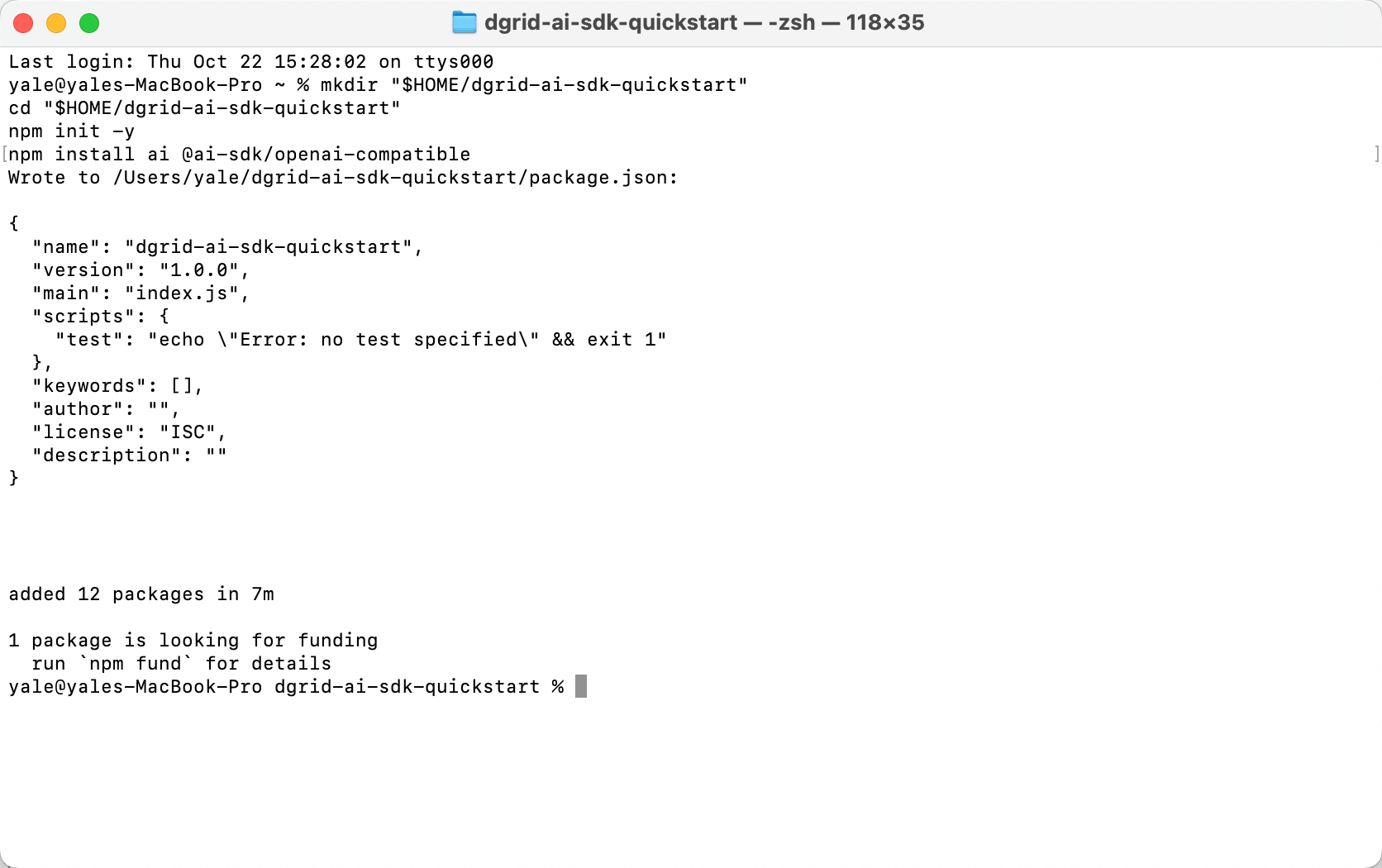
The example project and SDK dependencies installed in Terminal
Step 4 Call DGrid with Vercel AI SDK
Using a code editor, create a file nameddemo.mjs in dgrid-ai-sdk-quickstart, beside package.json. Paste the code below and save it as plain text. Make sure the filename is demo.mjs, not demo.mjs.txt.
The .mjs extension lets Node.js use the import statements in this example.
If you selected another model in Step 2, replace
openai/gpt-6-sol with its complete ID. The provider’s name: 'dgrid' is a local SDK label.
Step 5 Enter your DGrid API key
Use the instructions for your shell. Enter the key in the same terminal where you will run the script.macOS Terminal with Zsh
Run:Windows PowerShell
Run the first command, enter your key at the masked prompt, and press Enter. Then run the remaining commands to make it available to Node.js:demo.mjs and version control.
Step 6 Run the example
From the project directory, in the same terminal where you entered the key, run: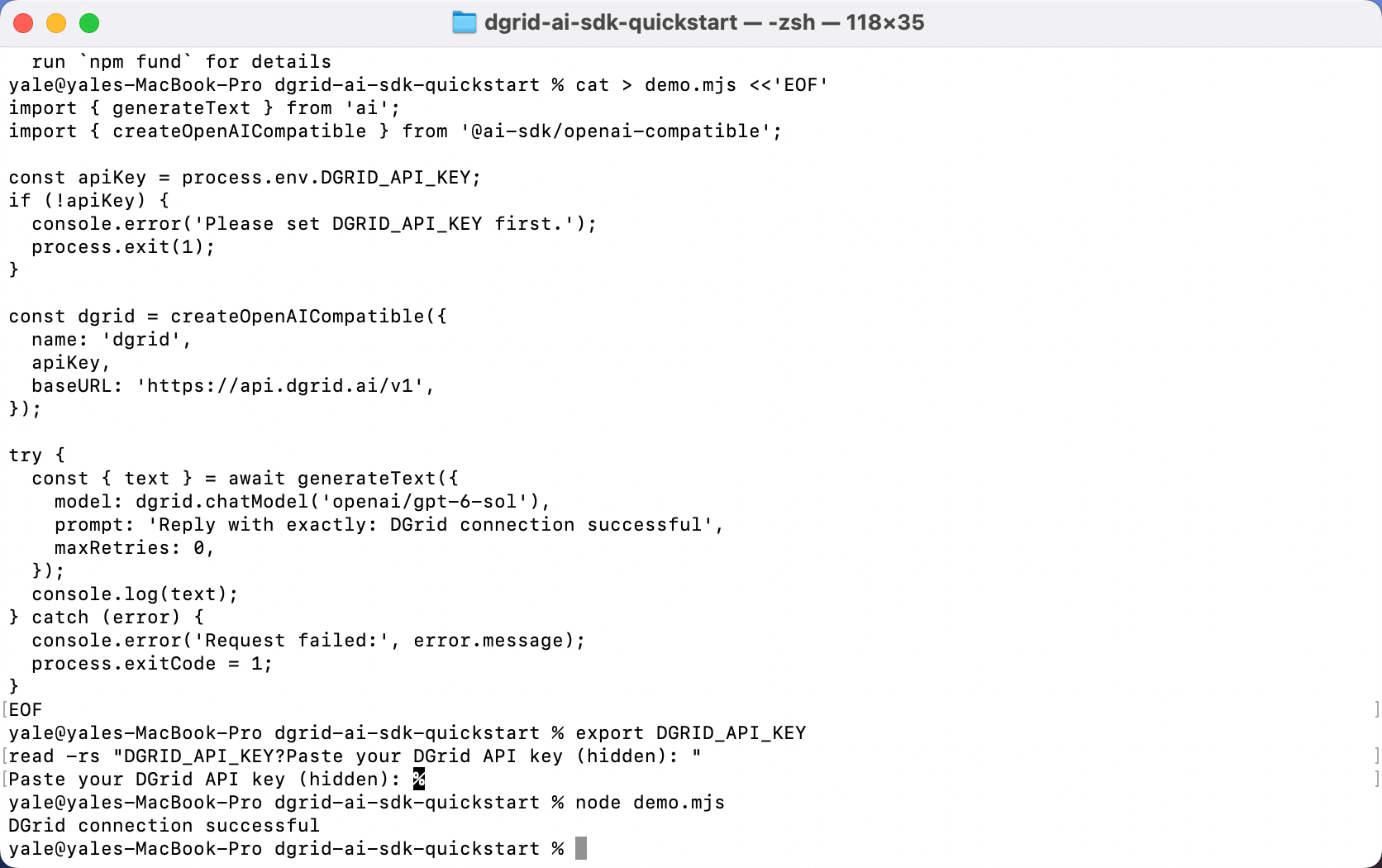
Run the script and receive the model response through DGrid
prompt string in demo.mjs, save the file, and run node demo.mjs again. Each run makes a new request.
Step 7 View the request in DGrid
Open DGrid’s request history and locate the matching model and request time. The completed request appears with Success status.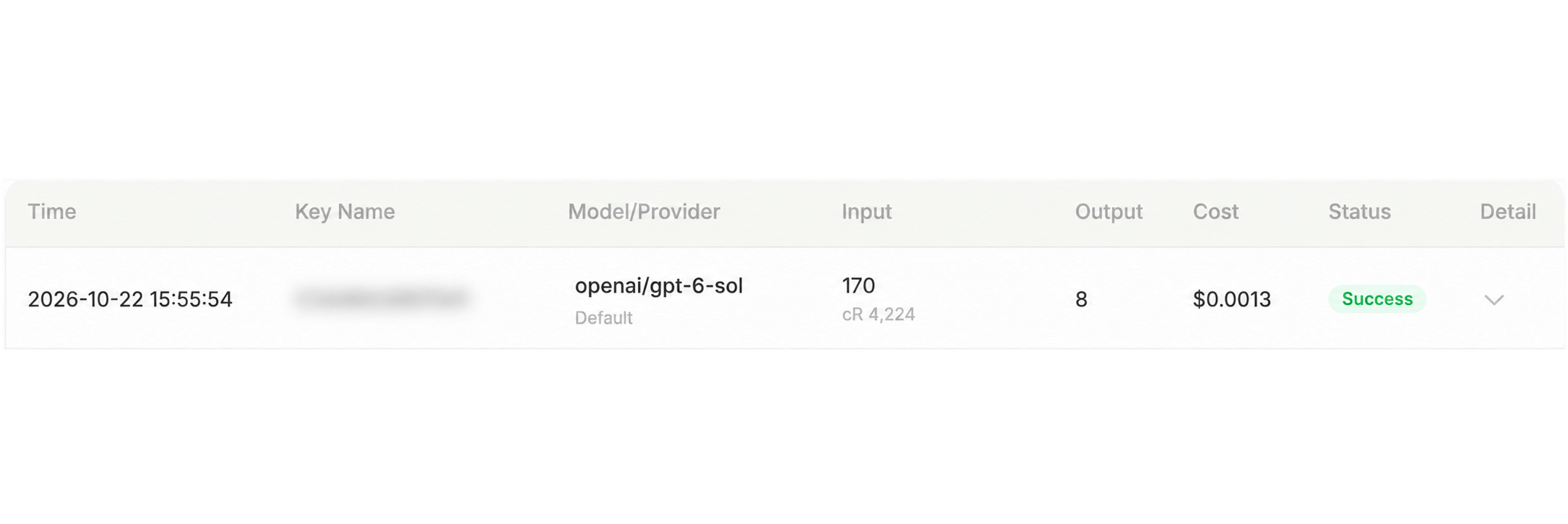
DGrid request history showing the selected model and Success, with Key Name blurred
Troubleshooting
For more details, see the AI SDK Node.js guide and OpenAI-compatible provider documentation.