

Use a DGrid Model API Key for model requests. A Management API Key is an administrative credential and cannot be used for this tutorial. Check that your key has available credits and access to the selected model.
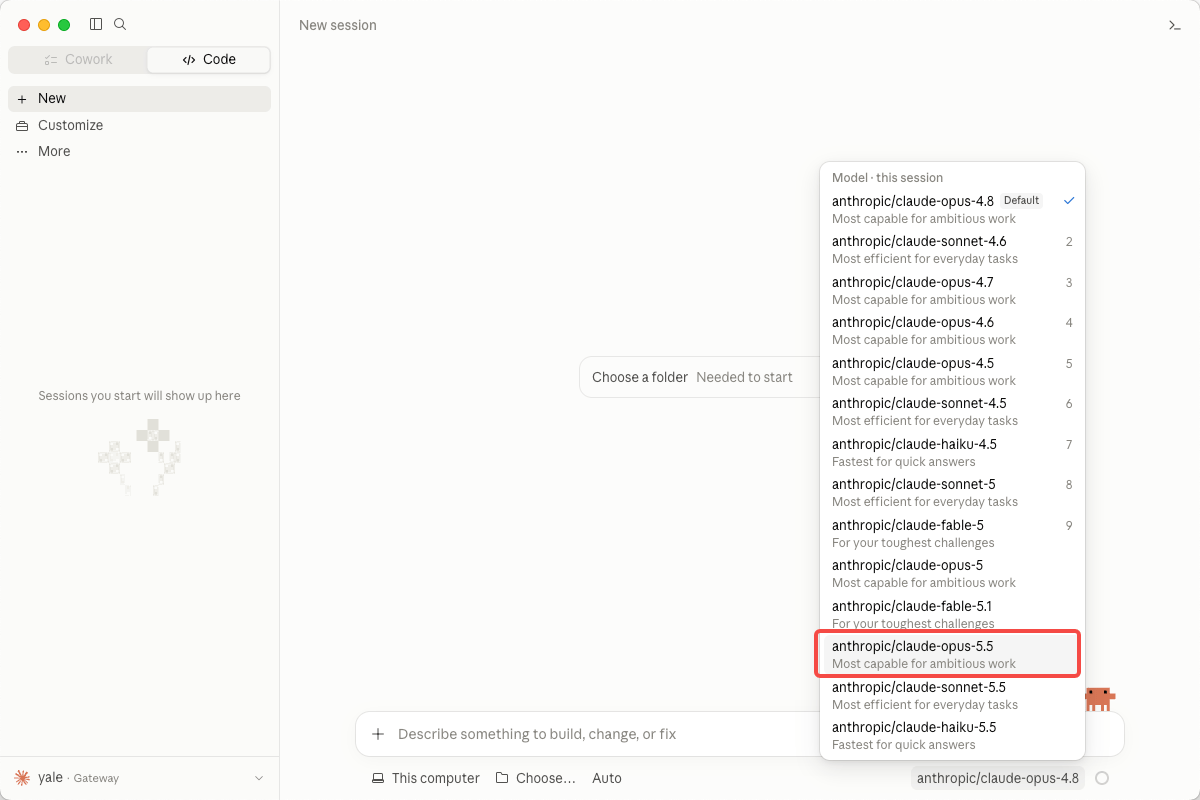
anthropic/claude-opus-5.5. Use its complete DGrid model ID, including anthropic/. You can substitute another available Claude model throughout the guide.
Before you start
- A macOS computer with an internet connection. The Terminal commands below use Zsh, the default macOS shell.
- A DGrid account with available credits and access to your chosen Claude model.
- For the npm installation method: Node.js 22 or later and npm. Installation instructions are included below.
2.1.306. Menus and model availability may differ in other versions. The desktop setup is independent: you can follow that section without completing the CLI installation.
Step 1 Create a DGrid API key and select a model
- Sign in to DGrid and open API Keys.
- Click Create New Key, name it, and create the key.
- Copy the key for the configuration steps below. Keep the full key out of screenshots and shared files.
- In DGrid’s model list, find an available Claude model and copy its complete model ID. This guide uses
anthropic/claude-opus-5.5.
Do not add
/v1 or /v1/messages to the base URL. Claude Code adds the Messages API path when sending requests.
- CLI
- Desktop
Step 2 Install Claude Code
If Claude Code is already installed, runclaude --version and continue to Step 3 if it prints a version number.Install with npm
First check whether Node.js and npm are available:sudo is needed for this user-directory installation. To make the PATH setting available in new terminals, add the same export PATH line to ~/.zshrc with a text editor.Alternative: native installer
You can instead use the official native installer. This method does not require a separate Node.js installation:claude --version. If the command is unavailable, add ~/.local/bin to PATH using the command above. Choose one installation method. If the script URL returns HTML or fails to download, use the npm method after installing Node.js.Step 3 Configure DGrid in the current terminal
Run this block in Zsh. Its final command prompts for the key without displaying your input:unset command removes a shell variable but does not remove an entry from a settings file. Check the effective connection in Step 5; see Troubleshooting if another credential is detected.Step 4 Start Claude Code
Create a separate folder for your first session, then start Claude Code with the complete DGrid model ID:Step 5 Check the active connection
Inside Claude Code, enter: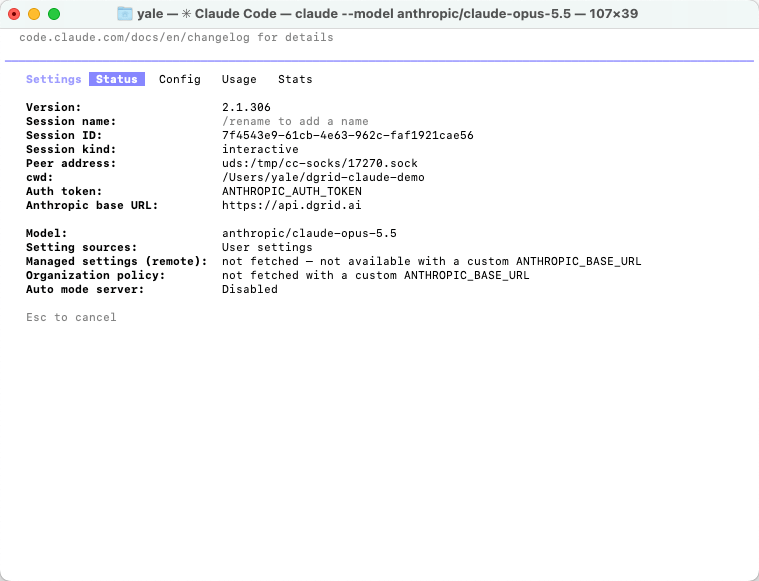
Claude Code Status showing the DGrid URL, token source, and selected model
Step 6 Send your first message
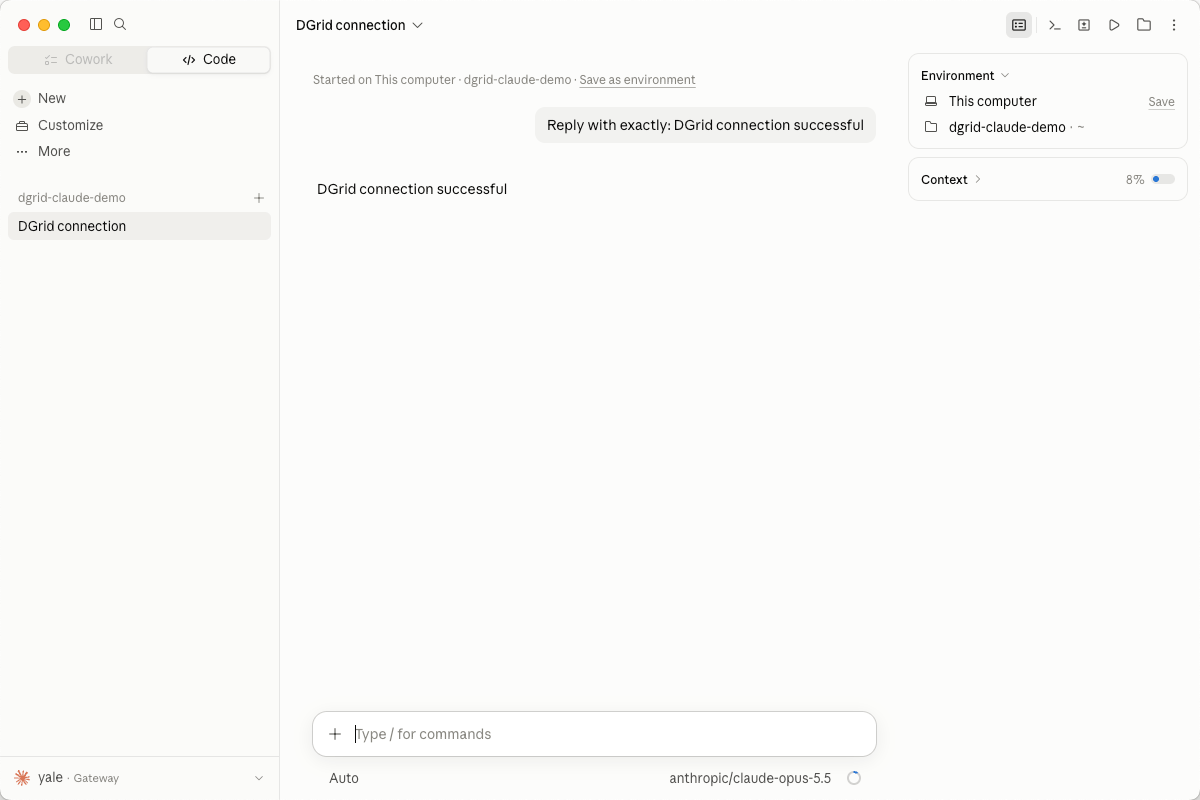
Enter: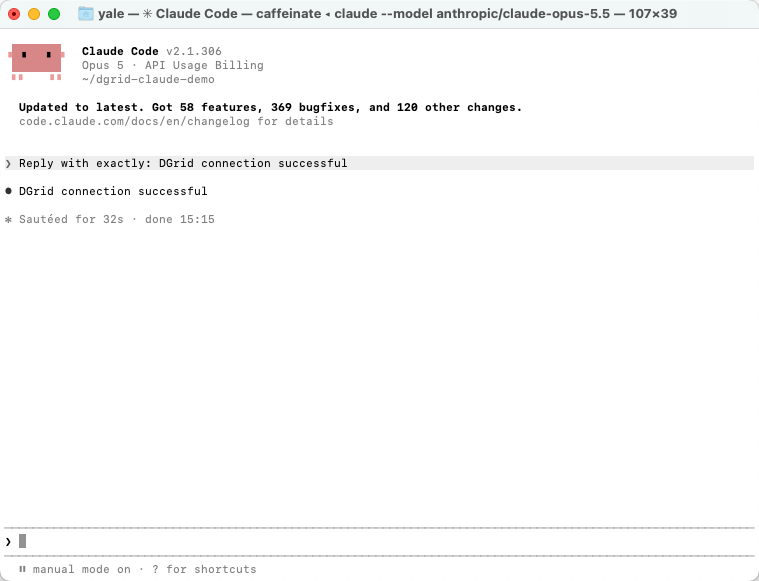
A successful reply in Claude Code Terminal
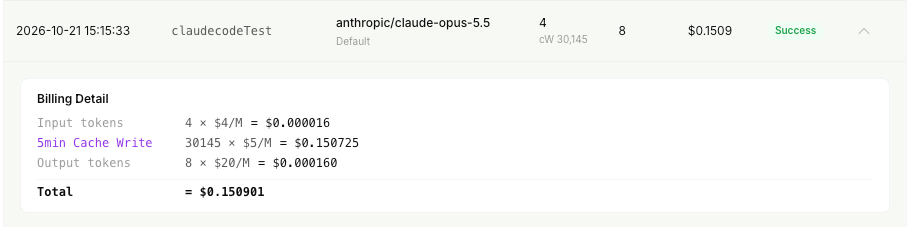
A completed Claude model request in DGrid
Optional: save settings for this project
To reuse the connection without entering shell variables each time, configure.claude/settings.local.json inside your project. Before creating it, add .claude/settings.local.json to the project’s .gitignore so the credential stays out of version control.Create or edit the local settings file, replacing the placeholder with your DGrid key:claude. Use /status to check the active settings again. See the official gateway settings guidance for configuration scopes.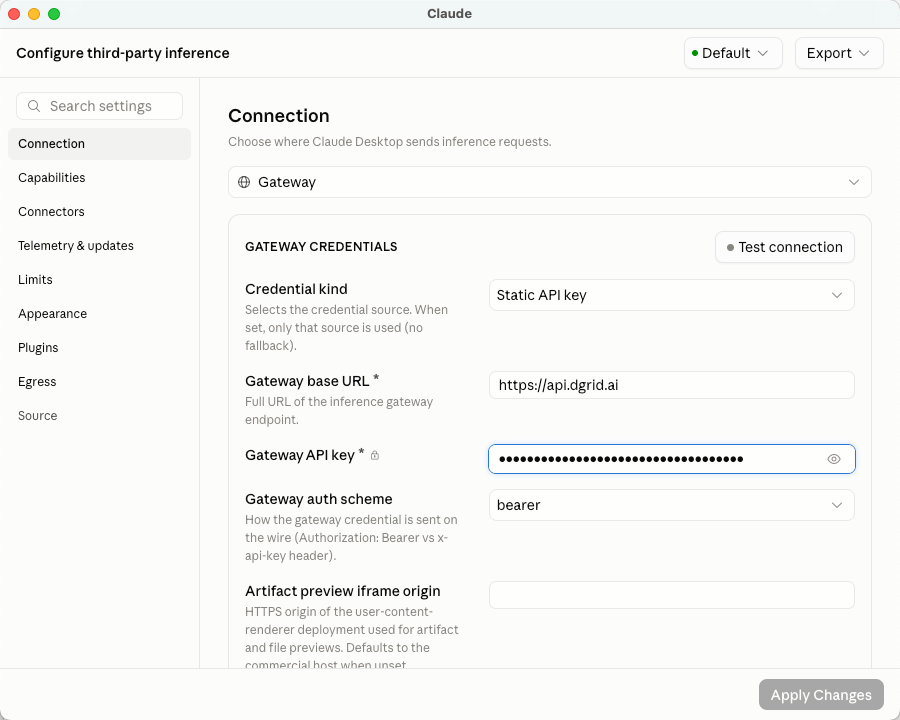
Troubleshooting
The terminal says command not found or permission denied
Check which command the shell finds:~/.local/bin is on PATH. You can check the installed launcher directly:
Claude Code detects another API key or shows the wrong gateway
Existing user or project settings can contain provider variables. If a first-launch prompt offers an oldANTHROPIC_API_KEY you do not intend to use, choose No for that key, then run /status to confirm the DGrid URL, the ANTHROPIC_AUTH_TOKEN source, and your model.
If the status is wrong, review the env entries in ~/.claude/settings.json, .claude/settings.json, and .claude/settings.local.json, along with any provider-switching tool you use. Settings-file values can override shell exports. Change the relevant provider fields or use the project-local configuration above, preserving unrelated settings. Restart the session and check /status again.
A request fails with an authentication or model error
Check the DGrid key, available credits, and access to the selected Claude model. Use the complete DGrid model ID rather than assuming a built-in model alias matches DGrid’s catalog. Re-enter the key if necessary without displaying it.The desktop app reports a gateway error
Open Details and inspect the request URL, HTTP status, response message, andprobedModel if present. The connection check can use a model different from the one selected for your chat. Check that the key has access to the reported model.
An HTTP 500 with upstream_error does not by itself establish whether the key, model route, or upstream service caused the failure. Confirm the saved connection settings and model access, then retry. If the error persists, provide DGrid support with the request time and error details, excluding the API key.