

Use a DGrid Model API Key for model requests. A Management API Key is an administrative credential and cannot be used for this tutorial. Check that your key has available credits and access to the selected model.
openai/gpt-6-sol as the example.
Before you start
- A macOS or Windows computer with an internet connection.
- A Cursor account. Check that your plan supports bring your own key (BYOK) and the selected custom model. In the version shown here, the free account could save the settings but was blocked from sending a message with the selected model.
- A DGrid account with available credits and access to your chosen model.
3.24.18 on macOS as the example. Menu labels may differ in other versions.
Step 1 Install and open Cursor
Open the official Cursor download page and choose the desktop installer for your operating system.macOS
- Choose Mac (ARM64) for Apple Silicon or Mac (x64) for Intel. Mac Universal supports both.
- Open the downloaded
.dmgand drag Cursor into Applications. - Open Cursor from Applications, complete any initial setup, and sign in to your Cursor account.
Windows
- Choose Windows (x64) (User) for an Intel or AMD computer, or Windows (ARM64) (User) for a Windows on ARM computer. The User installer installs Cursor for your Windows account.
- Run the downloaded
.exeand follow the installation wizard. - Open Cursor from the Start menu or its desktop shortcut, complete any initial setup, and sign in to your Cursor account.
Step 2 Create a DGrid API key
- Sign in to DGrid and open API Keys.
- Click Create New Key, give it a name such as
Cursor, and create the key. - Copy the key for the next step. Keep the full key out of screenshots and shared files.
- In DGrid’s model list, confirm the model you want to use is available to this key. Copy its complete model ID; the example below is
openai/gpt-6-sol.
Step 3 Configure the API key and base URL
- Click the gear icon beside your account name at the bottom left of Cursor.
- Select Models in the settings sidebar.
- Scroll down and expand API Keys.
- Under OpenAI API Key, paste your DGrid API key into the API Key field. Save if a Save button appears. A saved credential is indicated by Secret saved.
- Turn on Override OpenAI Base URL and enter:
- Turn on Use OpenAI API Key. If Cursor opens the Enable OpenAI API Key confirmation, read the feature limitations and click Enable OpenAI API Key to continue.
Keep the
/v1 suffix. Leave the key masked when taking screenshots.
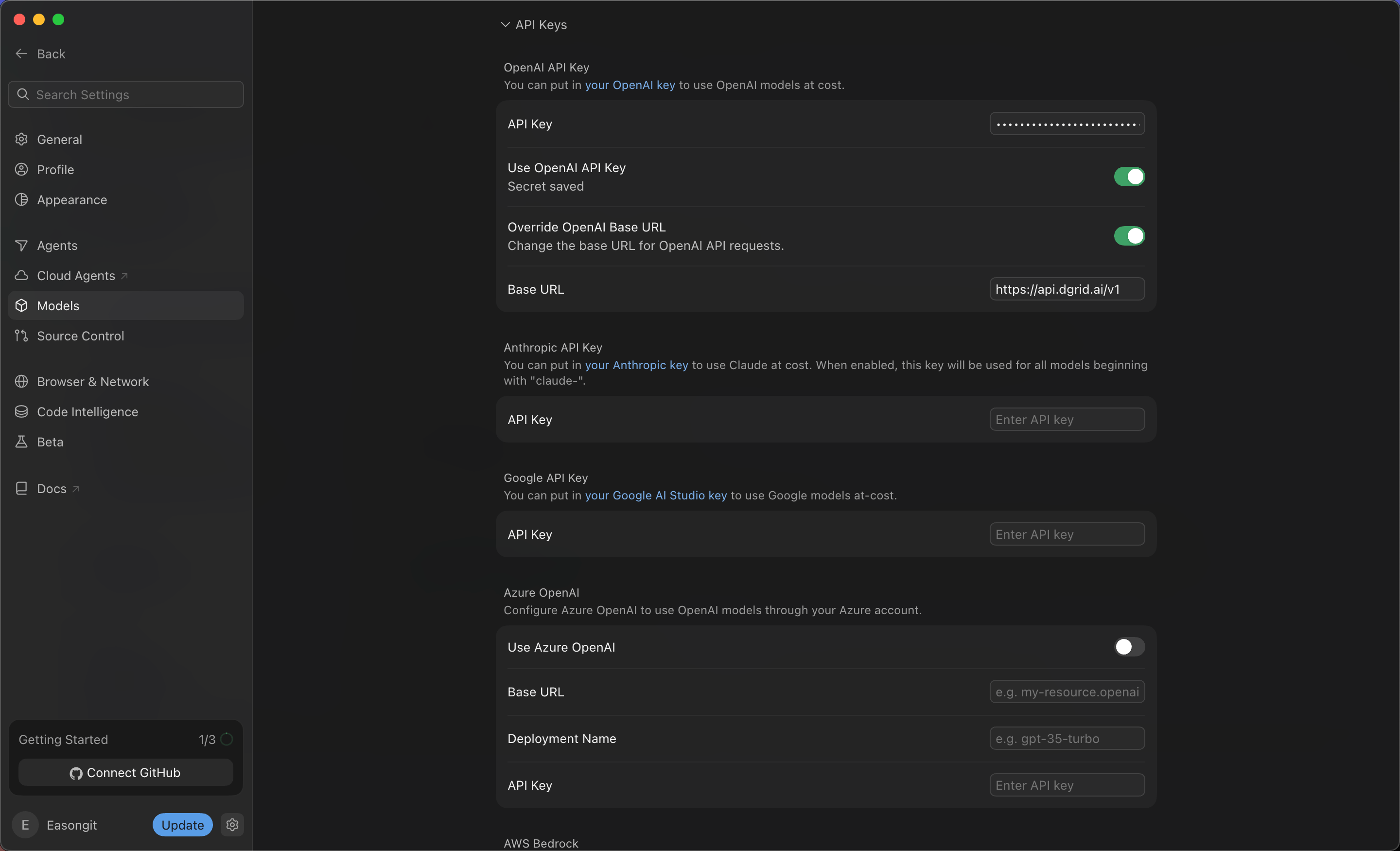
Saved DGrid key, enabled API key and base URL switches, and DGrid base URL
Step 4 Add the complete DGrid model ID
- Scroll up to the model list on the same Models settings page.
- In Add or search model, enter:
- If the search shows No models available, click Add Custom Model.
- In the new model field, enter the same complete ID, then click Add.
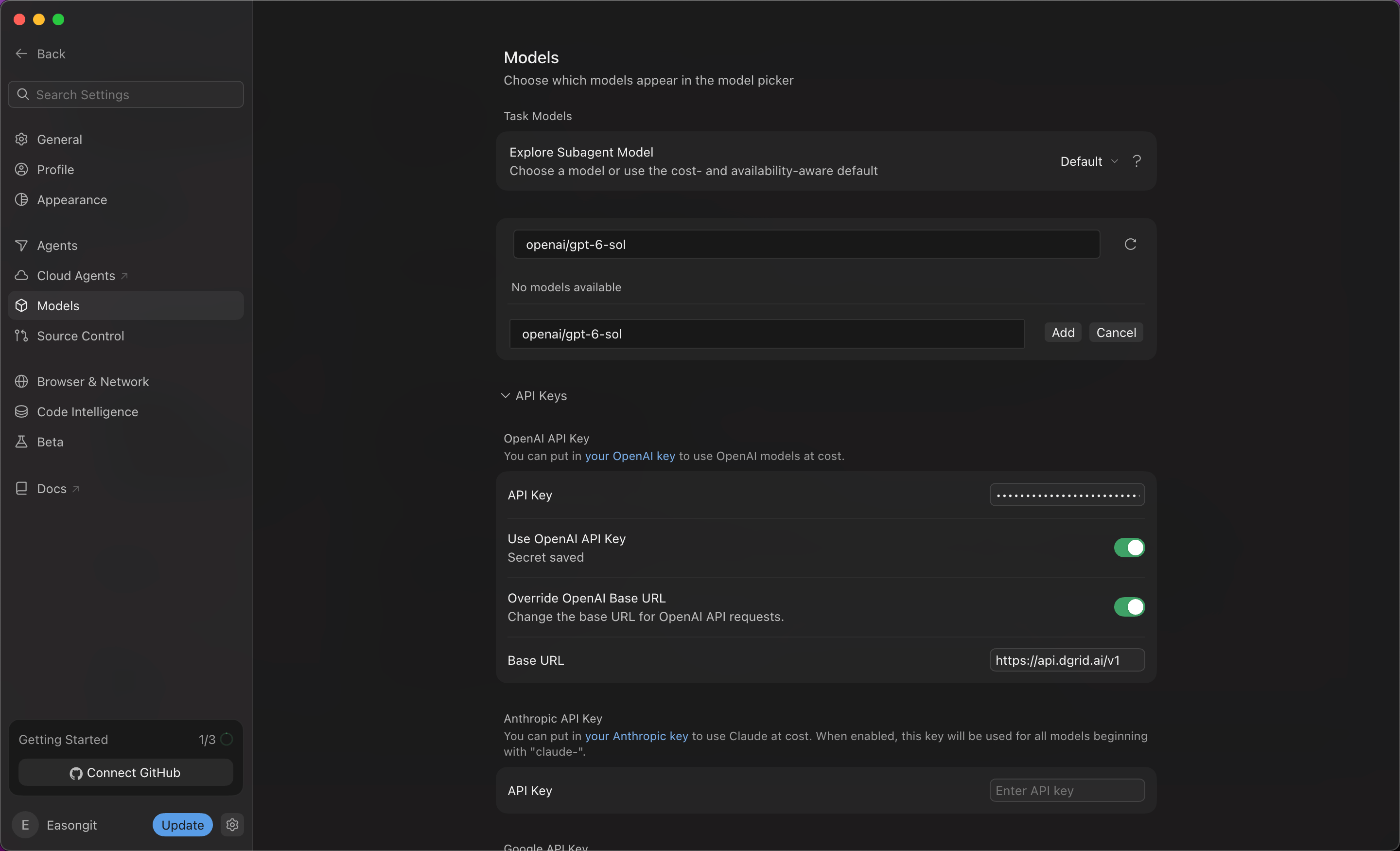
Add the complete DGrid model ID as a custom model
- Confirm that openai/gpt-6-sol appears in the model list and its switch is on.
openai/ prefix. If you use another model, substitute its exact DGrid ID in both the settings and chat selection.
Step 5 Select the model in a new chat
- Click Back at the top left to return to the chat screen. Start a new chat if needed.
- Click the model name below the message input to open the model picker.
- Select
openai/gpt-6-sol, the custom entry you just added. - Confirm that the input area now shows
openai/gpt-6-solas the selected model.
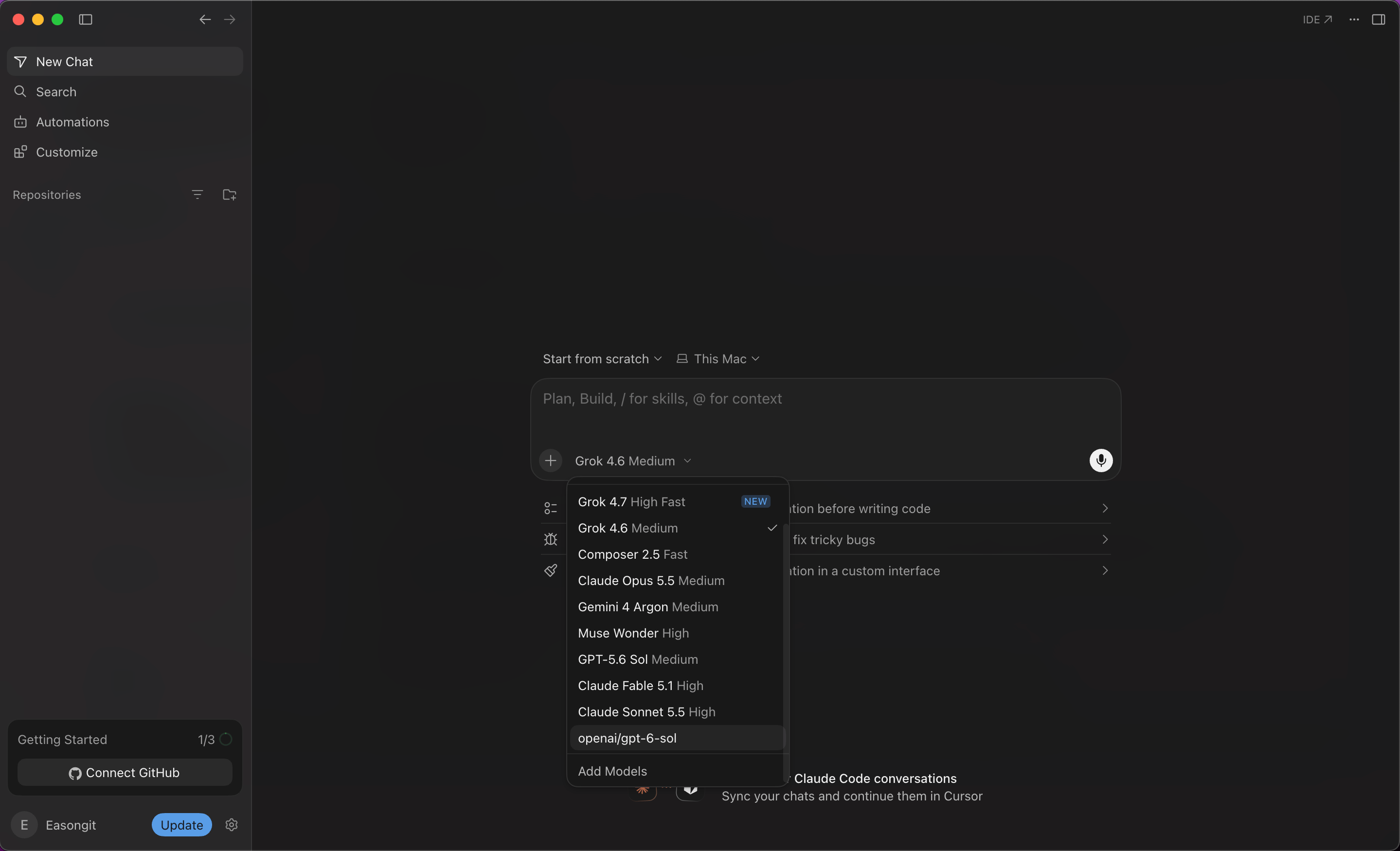
Choose the custom DGrid model in the chat model picker
Subscription requirement and first message
The screenshot below illustrates a plan restriction, not a successful model request. Confirm the route by receiving a reply and finding the corresponding request in DGrid.
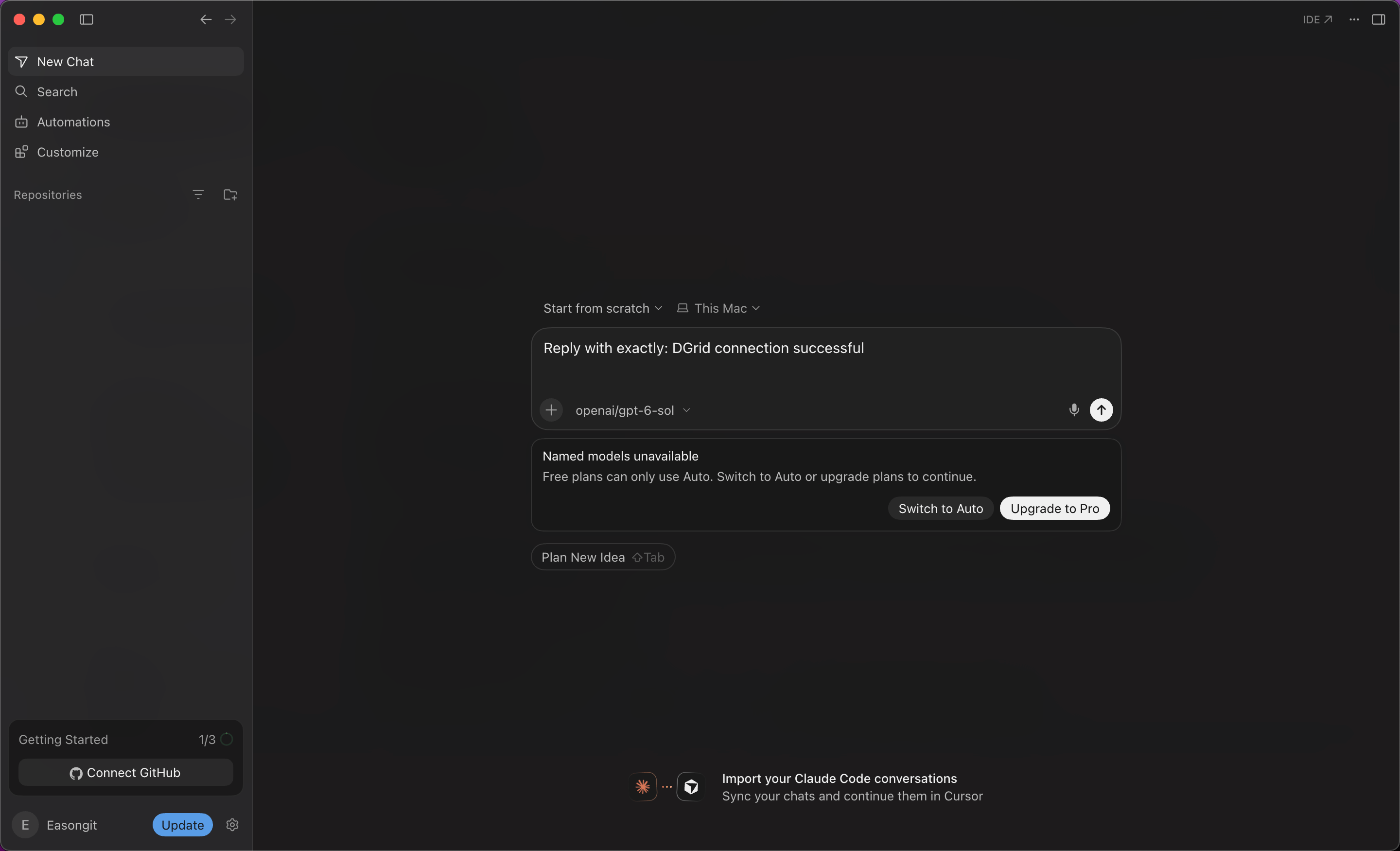
Cursor's free-plan restriction when sending a message with the custom model
Notes and troubleshooting
- Feature scope: Custom API keys apply to supported chat models. Tab completion continues to use Cursor’s built-in models. See Cursor’s API key documentation for feature and billing details.
- The key is saved but requests do not use it: Check that both Use OpenAI API Key and Override OpenAI Base URL are on, and that the base URL is
https://api.dgrid.ai/v1. - The model is missing from the picker: Check that the complete custom model ID was added and enabled, then reopen the picker in a new chat.
- A request fails after the subscription check: Check your DGrid key, available credits, complete model ID, and model access. Adding a model to Cursor’s list alone does not confirm that requests to it will succeed.
- Returning to another provider: Review the base URL override before using other OpenAI models, since it changes where those requests are sent.