

Use a DGrid Model API Key for model requests. A Management API Key is an administrative credential and cannot be used for this tutorial. Check that your key has available credits and access to the selected model.
openai/gpt-5.6-sol as the example model.
Before you start
- A DGrid account with available credits.
- A computer with terminal access. Installation commands for macOS, Linux, WSL2, and native Windows are below.
Step 1: Create a DGrid API key
- Sign in to the DGrid Console and open Credits → Keys, or go to the API Keys page.
- Select Create New Key, give it a name such as
Hermes, and create it. - Copy the key. You will paste it into the Hermes API key prompt. Do not include it in screenshots or public documents.
Step 2: Install Hermes and open setup
On macOS, Linux, or WSL2, run:prerequisites ok or Cloning ... hermes-agent.git, installation is still running. Wait for the setup wizard.
At How would you like to set up Hermes?, use the arrow keys to move to Full setup — configure every provider, tool & option yourself (bring your own keys), then press Enter or Space.
If installation finishes without opening the wizard, run hermes model in your terminal and continue at Step 3.
Step 3: Choose a custom API provider
In Select provider, find Custom (direct API) near the bottom of the list and select it. If you entered throughhermes model, choose Custom endpoint (enter URL manually).
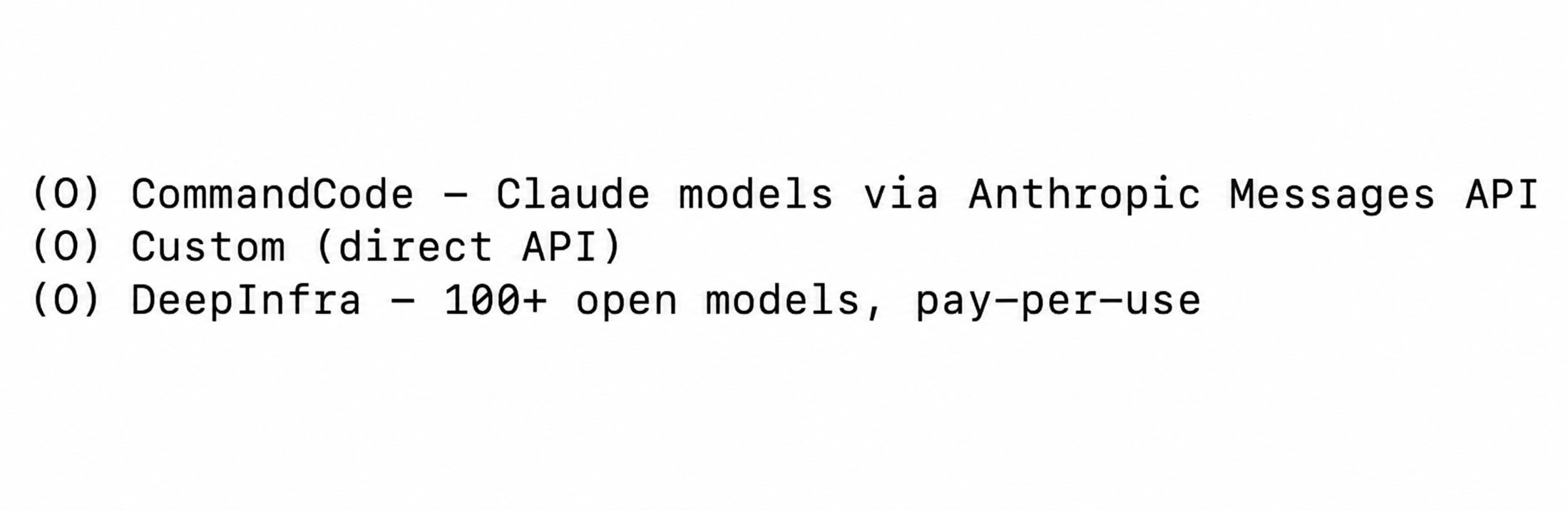
Custom direct API entry in the Hermes provider menu
Step 4: Enter the DGrid endpoint and model
Follow the wizard prompts in this order:
The base URL stops at
/v1; do not append /chat/completions. The [optional] text beside the generic API key prompt does not apply when connecting with a DGrid key.
After you enter the key, Hermes loads the models visible to it. Find openai/gpt-5.6-sol on Select model and enter that row’s number, or type the full ID. The screenshot shows 96, but your list number may differ. Use the complete ID to identify the model. If it is absent, choose another available DGrid model that supports Chat Completions.
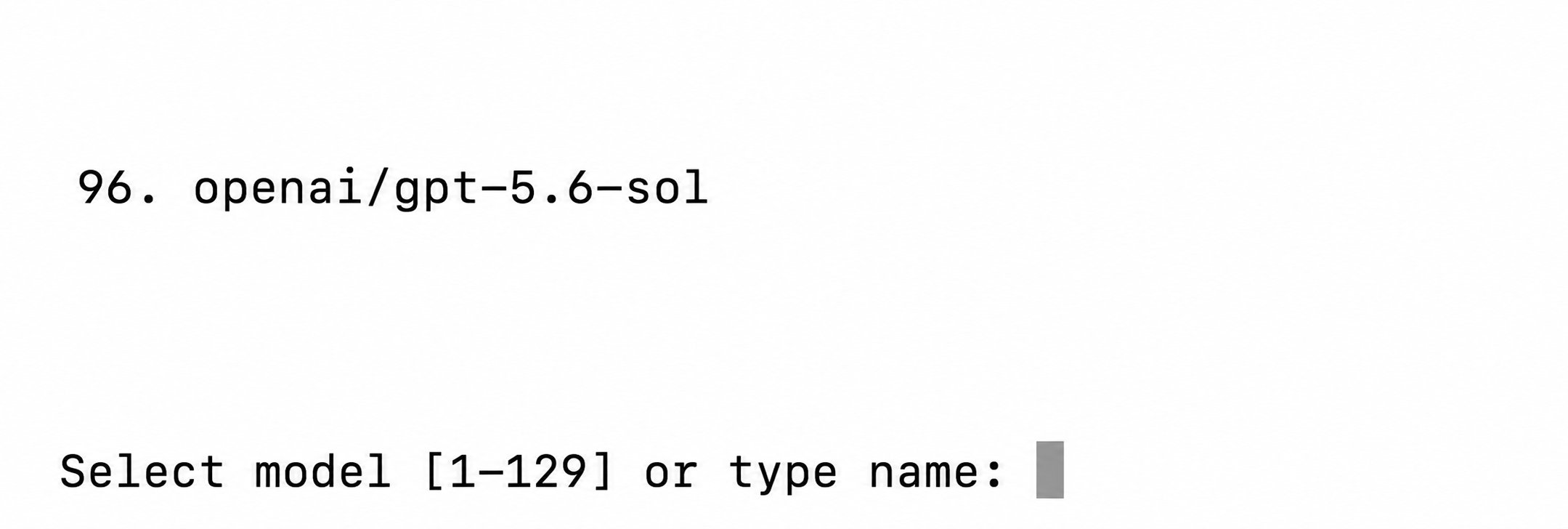
The example model and model-selection prompt in Hermes
Step 5: Start Hermes and use the DGrid model
Run: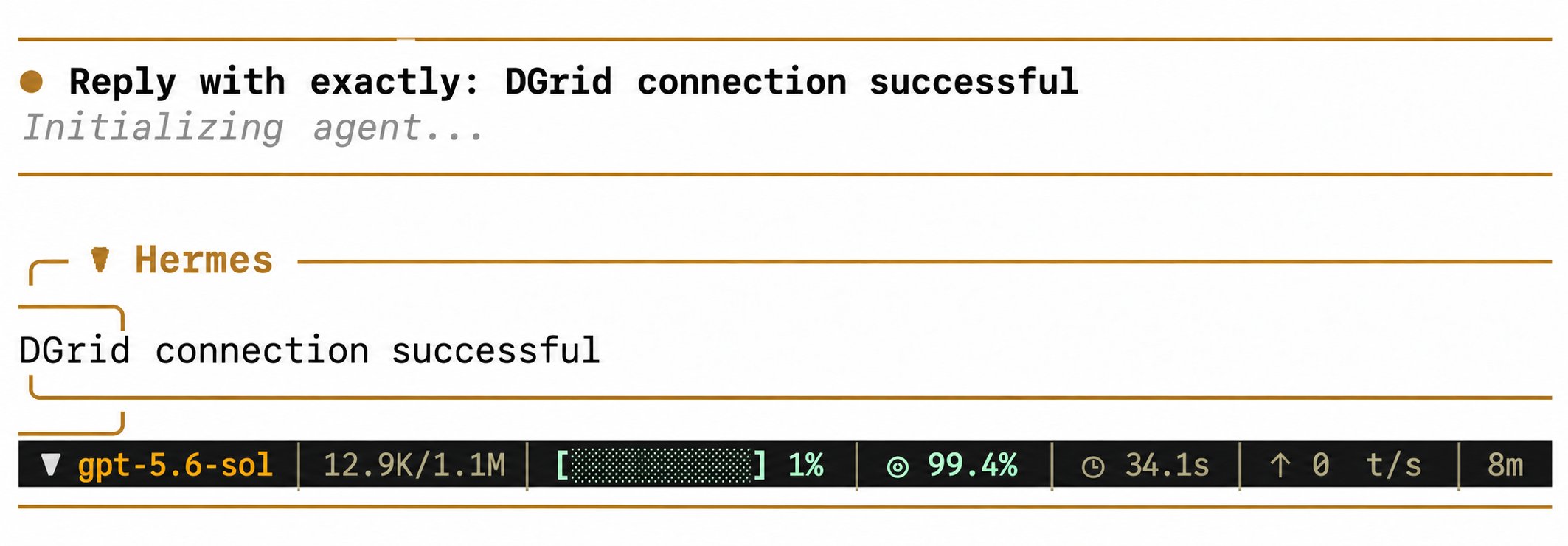
Chatting with a DGrid model in Hermes

The model request in the DGrid Console
Common questions
- The wizard did not open automatically: run
hermes model, select the custom endpoint, and enter the values from Step 4. - Enter inserts a literal
^M: press Control+J to submit the current text prompt. - You want to check or change the model: run
hermes statusin the terminal to see the current Model and Provider; runhermes modelto select a model again. - Chat replied, but
Auxiliary title generation failed: Request timed outappeared: this message concerns automatic conversation-title generation and does not undo the chat reply.