

Use a DGrid Model API Key for model requests. A Management API Key is an administrative credential and cannot be used for this tutorial. Check that your key has available credits and access to the selected model.
The OpenClaw Gateway is a local service on your computer that connects the OpenClaw dashboard. DGrid AI Gateway is the remote API service that receives model requests. Their access credentials are separate.
openai/gpt-6-sol.
Before you start
- A macOS computer with Terminal and an internet connection.
- A DGrid account with available credits and access to the model you want to use.
2026.10.5. Model availability depends on your DGrid account. You can replace the example with another available model that supports Chat Completions; enter its complete DGrid model ID.
Step 1 Create a DGrid API key
- Sign in to DGrid and open the API Keys page.
- Click Create New Key, give the key a name such as
OpenClaw, and create it. - Copy the key. You will paste it into the OpenClaw setup wizard in Step 4. Keep the full key out of screenshots and shared documents.
Step 2 Install OpenClaw
Open Terminal and run:~/.openclaw. Wait until it reports that OpenClaw is installed and the terminal prompt returns.
Start the setup wizard as a separate command:
Step 3 Choose manual provider setup
If the opening menu offers Quick start and Custom setup, choose Custom setup. Read the safety notice and select Yes if you accept it. If a usage statistics prompt appears, choose your preference; No thanks also lets you continue. Use the arrow keys and Enter to make these selections:
At Model/auth provider, select More… to open the full provider list.
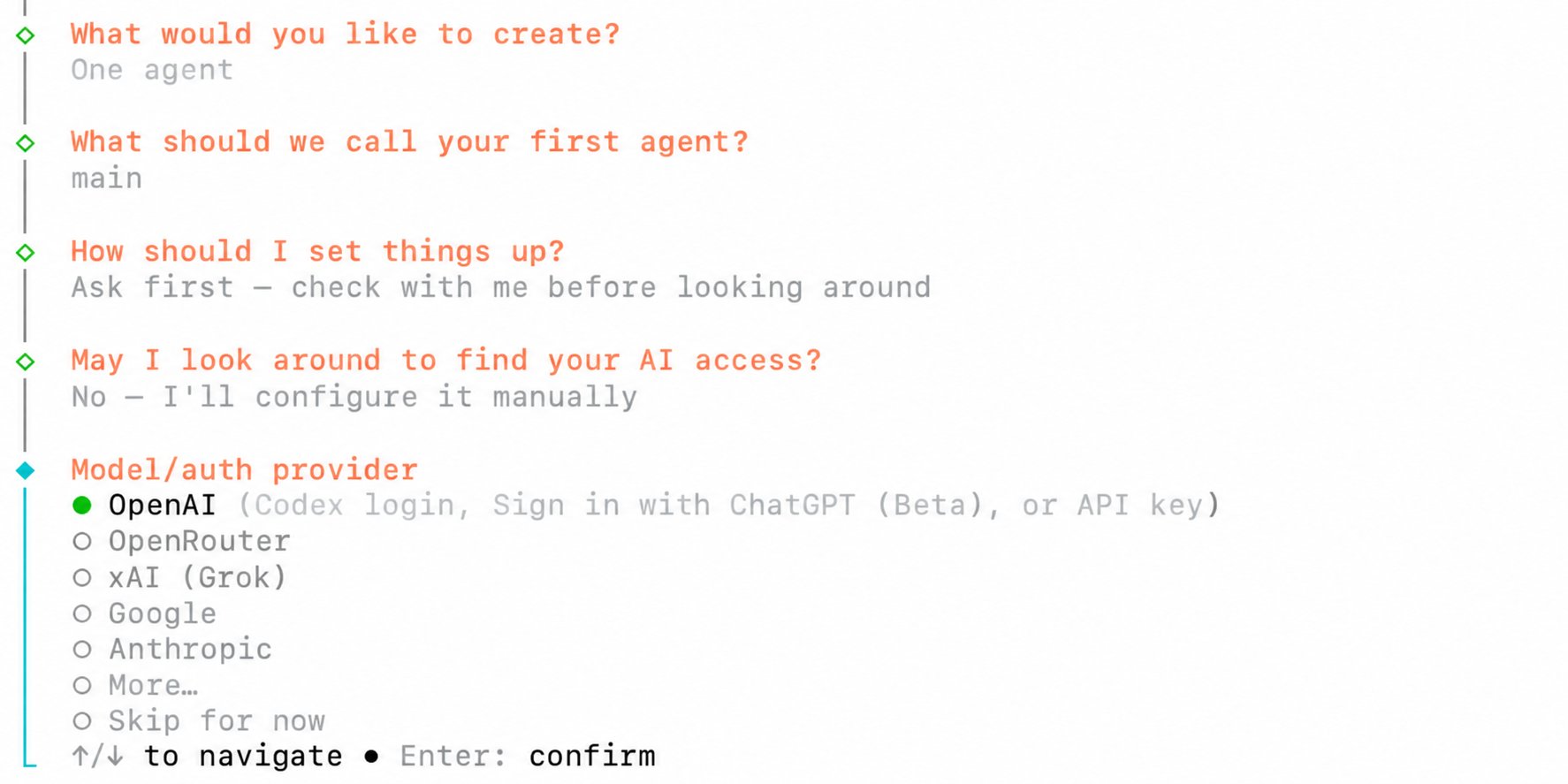
Select manual setup, then open More in the provider menu
custom in the provider search, select Custom Provider, and press Enter.
Step 4 Enter the DGrid connection details
Fill in the prompts in this order. Press Enter after each text field, and use the arrow keys and Enter for menu selections.
The base URL ends at
/v1; do not append /chat/completions. Enter the DGrid key even though the generic API Key prompt says it can be left blank when not required.
Use openai/gpt-6-sol as the Model ID, including the openai/ prefix. The Endpoint ID dgrid is OpenClaw’s local name for this provider. Together, they form the OpenClaw model reference dgrid/openai/gpt-6-sol.
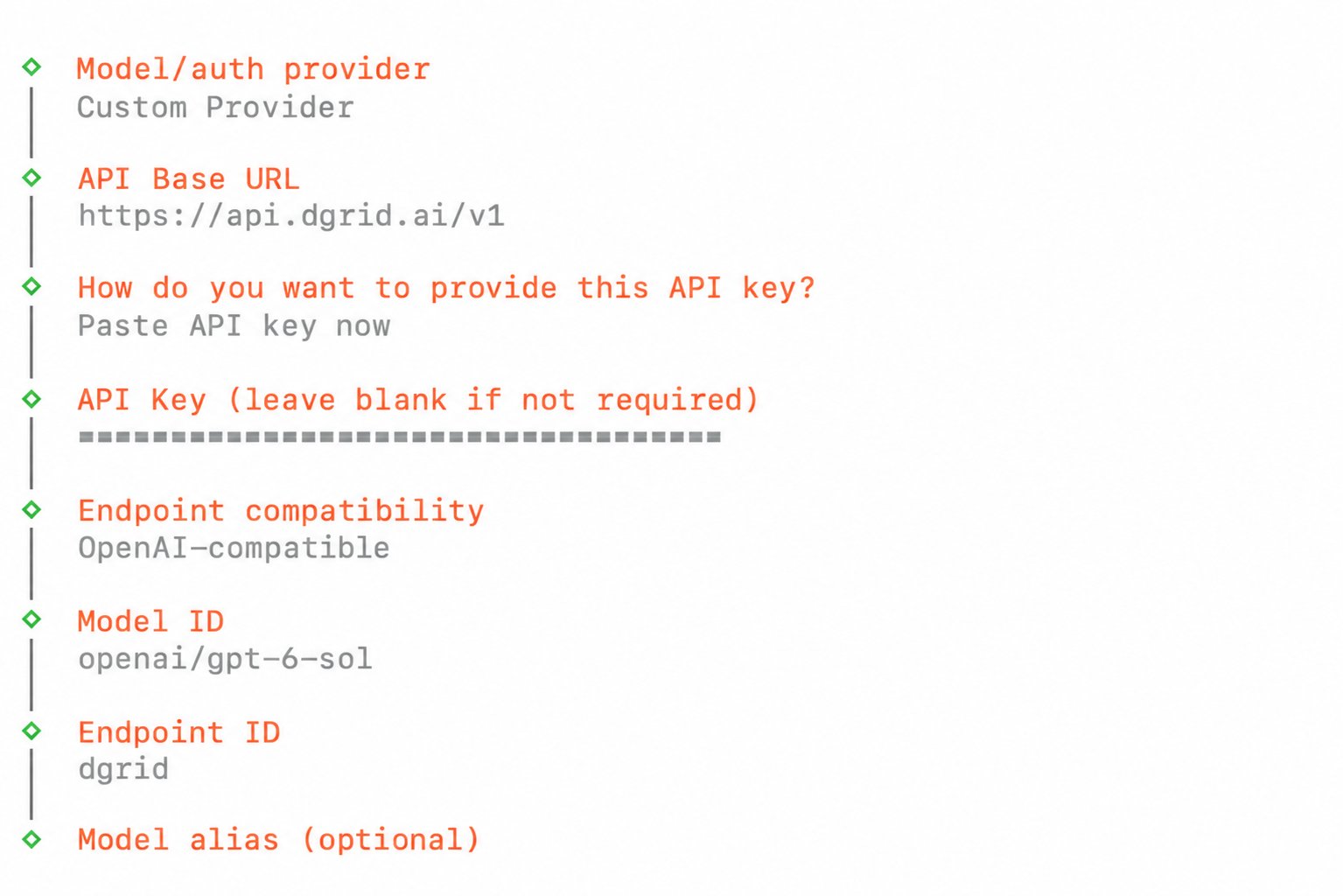
DGrid base URL, masked API key, model ID, and endpoint ID
Step 5 Finish setup and start the Gateway
The setup assistant displays a summary of the selected model, workspace, and local Gateway. When it asks Say yes and I’ll set all of that up now, enter: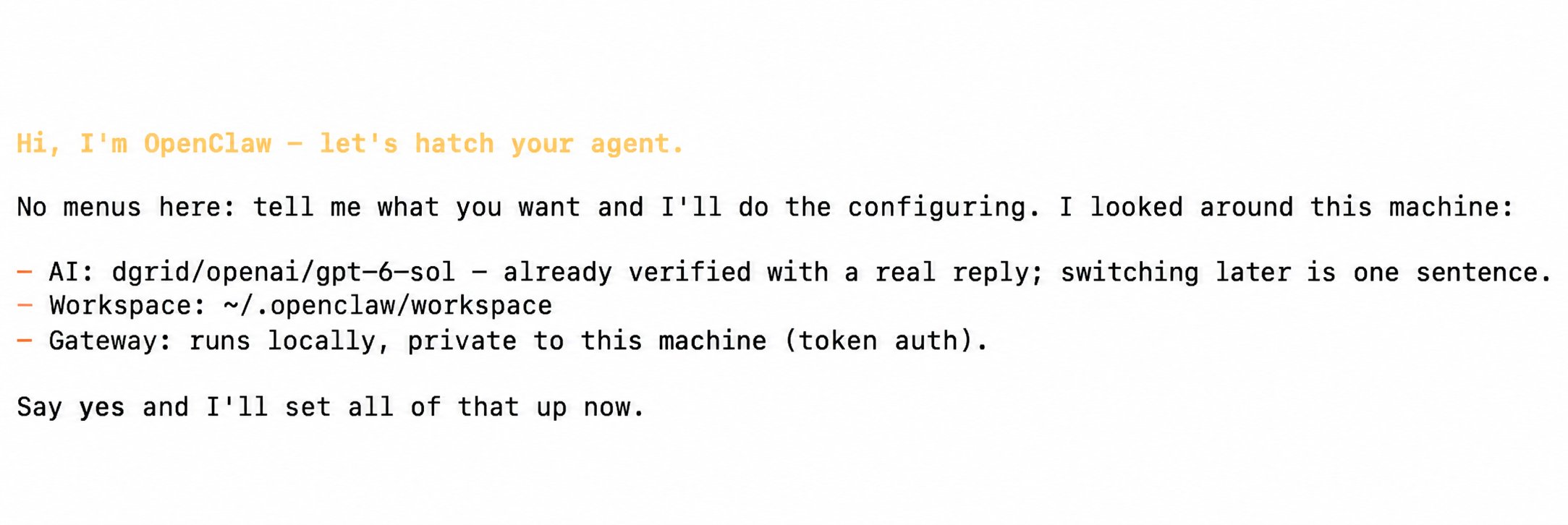
Review the setup summary and enter yes to apply it
Step 6 Start chatting with the DGrid model
- In the dashboard, open Home and the main session.
- Check that the model selector below the message box shows openai/gpt-6-sol (Custom Provider). If you used another model, select that model instead.
- In Message main, enter:
- Click the up-arrow Send button and wait for the reply.
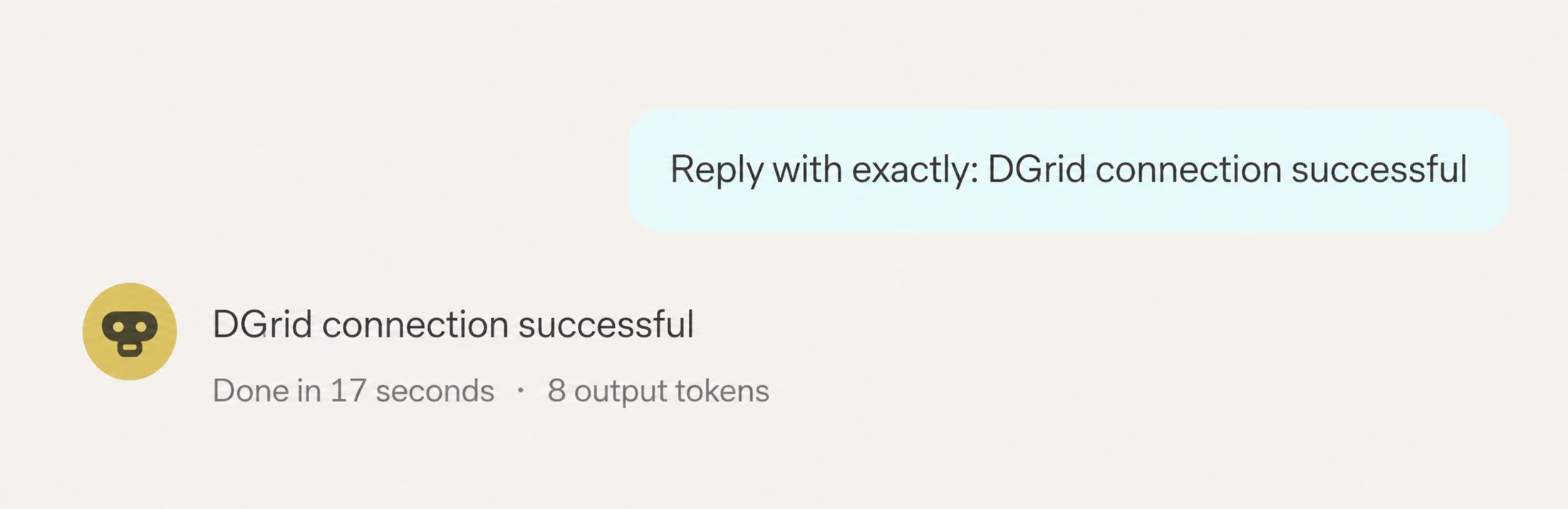
Send a message and receive a reply in OpenClaw
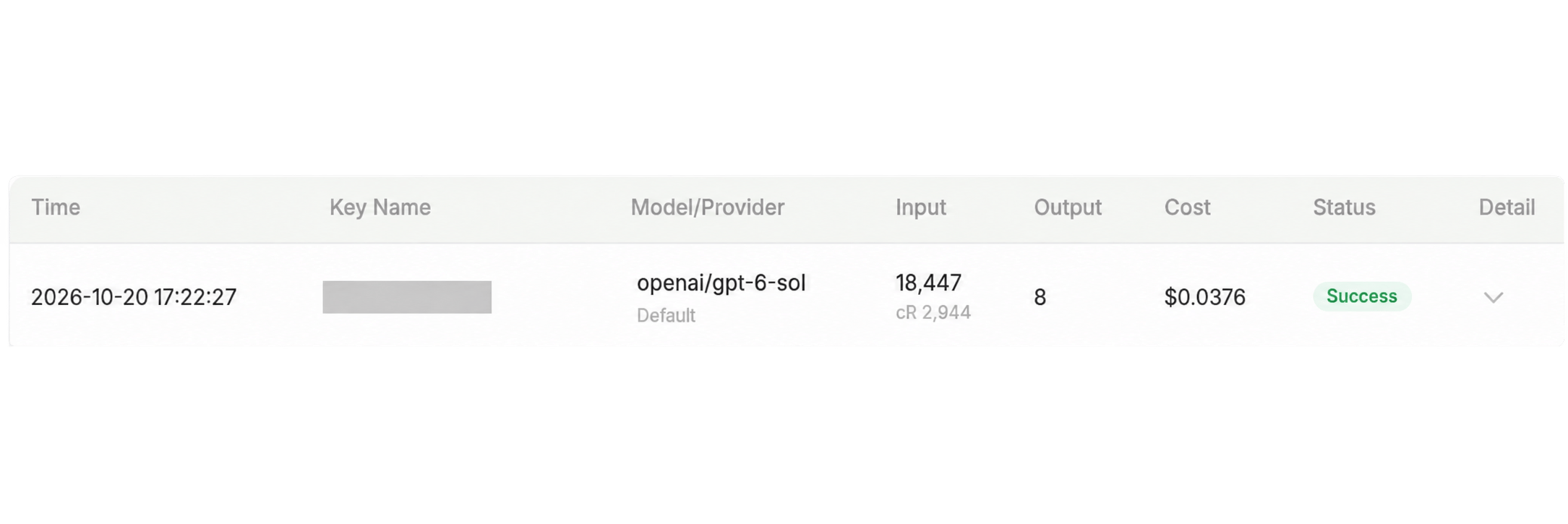
A successful DGrid model request
Troubleshooting
The installer says onboarding requires an interactive TTY Run the setup wizard directly from Terminal after installation:https://api.dgrid.ai/v1, the key has available credits and model access, the complete DGrid model ID is correct, and Endpoint compatibility is set to OpenAI-compatible for this Chat Completions configuration.
The Gateway stays stopped after an upgrade
If the Gateway startup log specifically reports Legacy device identity exists, stop the service and run the built-in migration and repair command:
"$HOME/.openclaw/bin/openclaw" gateway status again; if the repaired service is still stopped, run:
"$HOME/.openclaw/bin/openclaw" gateway status, then reopen the dashboard using the command in Step 5. The Gateway token used for dashboard access is separate from your DGrid API key.
For more details, see the OpenClaw installer guide, setup wizard documentation, and Gateway CLI reference.
Related resources
- Integration tutorials overview
- AI Gateway quickstart
- OpenClaw agent setup with DGrid
- OpenClaw installation and no-code setup